Published: · Updated: · by kodewright
How to Secure Your Google Account and Apple ID in 2026
Secure your Google Account and Apple ID: passkeys or security keys, recovery options you can actually use, device and app cleanup, and the settings that matter.
To secure your Google Account and Apple ID (renamed Apple Account in 2024), do four things: sign in with a passkey or security key instead of SMS codes, make sure your recovery email and phone are current and protected, remove devices and apps you no longer use, and turn on the extra protections each platform offers. Both accounts reset passwords for almost everything else you own, so they deserve the strongest setup you have.
The order matters more than people think. Whenever I've helped someone get back into an account, the blocker was the same: they didn't know the password for their recovery email, and they had no 2FA set up. So recovery comes early in this guide, not as an afterthought.
Why these two accounts come first
Your Google or Apple account is usually the recovery address for your bank, social networks and work tools, and often the login itself through "Sign in with Google" or "Sign in with Apple". Whoever controls it can request a password reset almost anywhere and read the reset email. It also holds the synced password vault (Google Password Manager or iCloud Keychain), photos, backups and location history.
An attacker rarely cracks these accounts. The common routes are phishing pages that relay your password and code in real time, reused passwords from other breaches, SIM swaps that hijack SMS codes, and malware that steals session cookies from a logged-in browser. Every step below closes one of those.
Use a unique generated password
Neither Google nor Apple publishes how it stores passwords, and an offline crack of their password database isn't the realistic threat. Reuse is. If your Google password is also your password on a forum that leaks, credential-stuffing tools will try it on Google within the same run.
Give each account a unique random password of 16 or more characters and keep it in a password manager. The Password Generator does this in your browser tab, and nothing it creates is sent to a server. For the reasoning behind the length, see why 12 characters is the floor.
Once you have passkeys set up, you'll type this password rarely, which is the point: a password you don't type is a password you can't type into a phishing page.
Replace SMS codes with passkeys or security keys
Second factors differ in what they actually stop:
| Method | Stops password reuse | Stops SIM swap | Stops real-time phishing |
|---|---|---|---|
| SMS or voice code | Yes | No | No |
| Authenticator app (TOTP) | Yes | Yes | No |
| Phone prompt ("Is it you?") | Yes | Yes | No |
| Passkey | Yes | Yes | Yes |
| FIDO2 hardware key | Yes | Yes | Yes |
Phishing kits such as Evilginx sit between you and the real login page and forward whatever you type, including SMS and TOTP codes, then keep the session cookie. Passkeys and hardware keys sign a challenge for the exact domain, so a look-alike domain gets nothing usable. If you want to see whether your browser and device support passkeys before you rely on them, the Passkey Checker tells you.
Google made passkeys the default sign-in option for personal accounts in October 2023. Go to myaccount.google.com/security, open "How you sign in to Google", and:
- Add a passkey on your phone and on your main computer, or register a hardware security key.
- Turn on "Skip password when possible" so the passkey is used first.
- Download and print the backup codes under 2-Step Verification, and store them offline.
- Once you have two strong methods, remove SMS as a 2-Step Verification option.
The Advanced Protection Program is worth it if you're a journalist, an admin of anything important, or otherwise a likely target. Since July 2024 it accepts passkeys, so a hardware key is no longer required. It enforces a passkey or key at sign-in, makes Chrome stricter about downloads, and restricts which apps can access your Google data. The cost is some friction with older third-party mail clients.
Don't confuse it with Advanced Protection on Android 16 phones (Settings → Security & privacy → Other settings → Advanced Protection). That one protects the device: it blocks app installs from outside Google Play, blocks 2G networks, and adds theft locks. Its optional Account protection step enrolls your Google Account in the program above.
Apple
Apple's two-factor authentication sends codes to your trusted devices, with a text or call to a trusted phone number as the fallback. That fallback is the SIM-swap exposure. The fix is security keys: on iPhone, go to Settings → your name → Sign-In & Security → Two-Factor Authentication → Security Keys. Apple requires at least two FIDO-certified keys (up to six) and iOS 16.3, iPadOS 16.3 or macOS 13.2 on every signed-in device.
After that, signing in needs your password plus a key or a nearby trusted device, and six-digit codes stop working. Read Apple's warning before you do it: if you lose every trusted device and every key, you can be locked out permanently. Keep the second key somewhere other than your keychain.
On iPhone, also turn on Stolen Device Protection (Settings → Face ID & Passcode). Away from familiar locations, it requires Face ID or Touch ID before anyone can change the Apple Account password, plus a one-hour delay, which stops a thief who watched you type your passcode.
Fix recovery before you need it
Recovery options are how you get back in, and how an attacker gets in if they're weaker than your sign-in. Check each one:
- Recovery email. It needs its own unique password and its own 2FA, and you need to know that password today. This is the gap I see most when people ask for help.
- Recovery phone. It should be a number you'll keep for years, with a SIM PIN or carrier port-out protection if your carrier offers it.
- Backup codes or recovery key. Google gives you printable backup codes. Apple offers a 28-character recovery key (Settings → your name → Sign-In & Security → Recovery Key) that replaces Apple's standard recovery process. Apple can't retrieve it for you, so only turn it on if you'll store it safely.
- Recovery contacts. A person you trust confirms it's you when everything else fails, without getting any access to your account. Apple allows up to five (Settings → your name → Sign-In & Security → Recovery Contacts); they read you a six-digit code during recovery, and they need an Apple device on iOS 15 or later. Google added recovery contacts in October 2025 (myaccount.google.com → Security & sign-in → Recovery contacts): up to 10 people, who confirm your identity by picking a matching number on their phone. A new Google contact can't help until 7 days after accepting, so add one now, not when you're locked out. Accounts in Google's Advanced Protection Program can't have recovery contacts, which is one more reason that program suits people who keep backup keys.
Avoid circular chains, where Gmail recovers through an iCloud address that recovers through a phone number whose carrier account recovers through Gmail. One weak link then opens all of them.
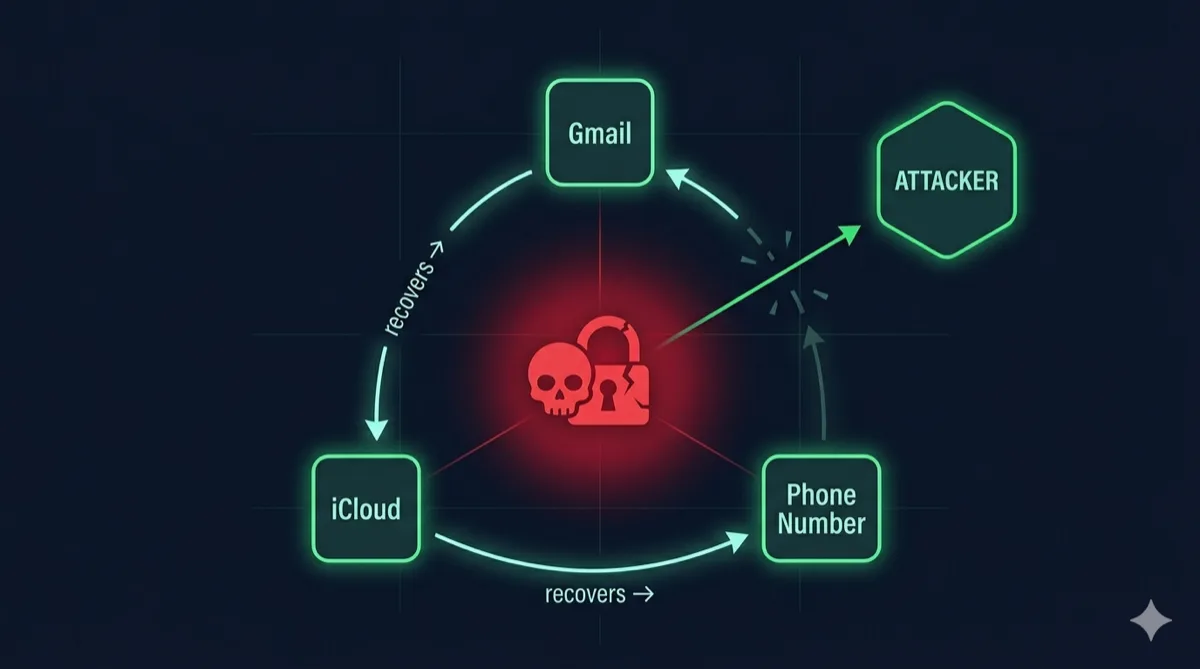
A sturdier setup is a recovery email at a different provider with its own strong 2FA, printed backup codes stored at home, and no account that can be recovered by SMS alone.
Remove devices and apps you no longer use
Old sessions and connected apps keep working after a password change, so clean them up.
Google: myaccount.google.com/device-activity lists every device signed in during the last 28 days; sign out anything you don't recognize or no longer own. Then open myaccount.google.com/connections, which lists apps and services linked to your account, including "Sign in with Google", and remove the ones you don't use.
Apple: the device list is at the bottom of Settings → your name; tap a device you no longer own and choose Remove from Account. Sign in with Apple connections are under Settings → your name → Sign in with Apple, where you can delete apps you've stopped using.
A sold phone you never signed out of can still appear as a trusted device and receive prompts. Remove it.
Turn on the extra protections
Google Security Checkup (myaccount.google.com/security-checkup) gathers the above in one page: recent security events, devices, third-party access and saved passwords flagged by Password Checkup. Run it after any change.
Apple Advanced Data Protection (Settings → your name → iCloud → Advanced Data Protection) raises end-to-end encryption from 15 to 25 iCloud data categories, adding iCloud Backup, Photos, Notes and iCloud Drive. With it on, Apple doesn't hold the keys to that data and can't recover it for you, which is why setup requires a recovery key or recovery contact. iCloud Mail, Contacts and Calendars stay outside end-to-end encryption either way. Since February 2025 Apple no longer offers it to new users in the UK.
Finally, treat Google's critical security alerts and Apple's "new sign-in" emails as real. If you didn't trigger one, go to the device list, sign out the unknown device and change the password from a device you trust. For what to do after a confirmed leak, I keep a separate checklist in the first 48 hours after a data breach.
If you only have ten minutes today, spend them on two things: add a passkey to each account, and confirm you can sign in to your recovery email right now.
FAQ
What's the single most important step to secure a Google Account?
Add a passkey or hardware security key, then remove SMS from 2-Step Verification. Of all the options Google offers, only these two resist phishing pages that relay codes in real time.
Can my Apple ID be hacked even with two-factor authentication on?
Yes. Phishing pages can collect your password and a six-digit code, and a SIM swap can capture codes sent by text. Two security keys on the account remove codes as a sign-in route, and Stolen Device Protection covers the case where someone has your phone and its passcode.
What is Google's Advanced Protection Program?
It's Google's highest security setting for accounts at risk of targeted attacks. You enroll with two passkeys or security keys (or one plus recovery options), and Google then requires them at sign-in, scans Chrome downloads more strictly and limits third-party access to your data.
Should I turn on Advanced Data Protection for iCloud?
Yes, if you're confident you can keep a recovery key or recovery contact. It covers backups, photos, notes and iCloud Drive with end-to-end encryption, but Apple can no longer help you recover that data if you lose access.